
To establish compliance with the federal ADA Title II ruling, InsideMGA will only accept submissions that meet the required accessibility standards going forward.
Here is a short guide covering three common types of accessibility rules to look out for when you submit an InsideMGA post for public view.

Alt text: A Duke the Knight emoji proudly holding a purple Knights pennant
All images will need alternative text provided. Alternative text (alt text), is a short description of the image.
| Do | Don't |
|---|---|
| Provide a description of the image within the context of why it was provided. | Describe every single visual element on a design. |
|
Provide all details for flyers and event graphics as plain text in your submission email. (ex: date, location, details) Assistive technology can only read text on a page. It cannot read text on images. |
Leave out information in the alt text that is otherwise provided in an image, file, or document. |
|
If your image, diagram, or file is text-heavy and needs to be conveyed in multiple pages, create a new page within your office/department’s pages.
|
Include the words “image,” “photo,” “flyer,” etc., in the alt text. This is redundant information and can become repetitive for those using screen readers to scan posts with multiple images (ex: photo galleries) |
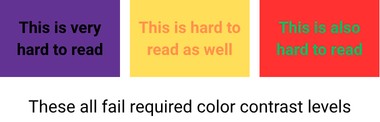
Alt text: example of three inaccessible background-to-foreground color combinations. Text reads: “These all fail required color contrast levels.”
The colors you choose to use in an image, flyer, graphic, or any visual content must pass ADA Title II’s required color contrast levels.
If it does not pass color contrast levels, it will create a barrier for those with low vision and colorblindness from accessing your content the same way those without disabilities can, even if it may seem readable at first glance.
There are many helpful color contrast checking tools out there that will let you know if your combinations of colors are good to use. For a list of checkers and common MGA color combinations to avoid, refer to the Web Content Accessibility Guide’s “Colors” section.
Tip: Popular image creator tools, like Canva, already have a built-in color contrast checker. Click on the “Accessibility” feature to review your flyers!
If you are posting a PDF, Word document, Excel sheet, PPTX presentation, or any other popular format to share for public view, each of those formats has to be reviewed using the built-in accessibility features on Adobe Acrobat Pro, MS Word, MS Excel, etc.
Visit these guides for instructions on how to make your content accessible before it can go live on InsideMGA (or all other MGA sites!)
From reading video captions in a quiet library to being able to fill out a PDF form online, it takes just a few steps to create content that considers accessibility from the start and benefits everyone in the end.
The Office of Marketing & Communications sends gratitude to everyone for helping make InsideMGA accessible!
(More Duke the Knight emojis can be found at https://www.mga.edu/marketing-communications/brand.php#emojis 💜)